
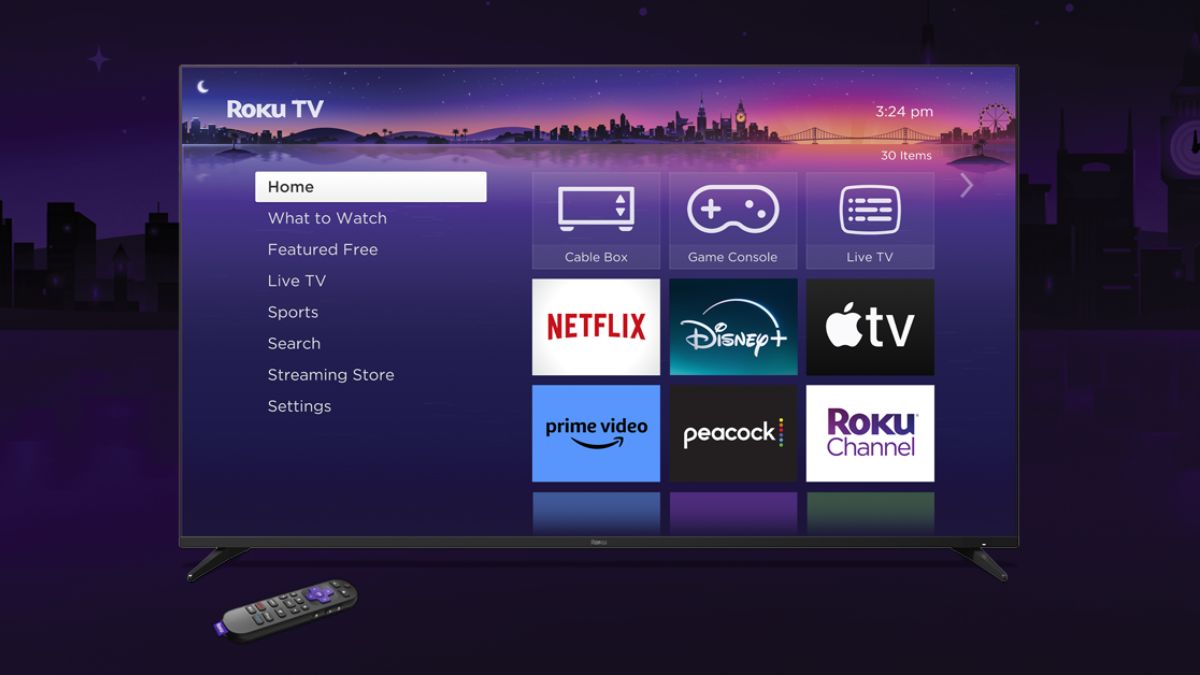
Roku TVs have become a staple in many households, offering an affordable and user-friendly way to stream entertainment. However, like any electronic device, they can occasionally run into issues, from frozen screens to apps that won’t load. Before you consider replacing your Roku TV, try these three straightforward troubleshooting methods to get it back up and running. These solutions, recommended by tech experts and Roku support forums, can often resolve common problems without the need for costly repairs.
1. Unplug and Restart Your Roku TV
It may sound like a cliché tech fix, but unplugging your Roku TV is often the most effective first step. This simple action, often referred to as a “soft reset,” can resolve a surprising number of issues, including sluggish performance, frozen apps, or connectivity problems. To do this, unplug your TV from the power outlet and wait at least 30 seconds. This brief pause allows the device to fully power down, clearing any temporary glitches in the system. After waiting, plug the TV back in and turn it on. Many users report that this quick fix restores their Roku TV’s functionality, as it resets the internal software and clears minor bugs. If your TV still doesn’t work, move on to the next step.
2. Check for and Install System Updates
Outdated software can cause a range of issues, from apps crashing to the Roku interface becoming unresponsive. To address this, navigate to the Roku TV’s settings menu and check for system updates. Go to Settings > System > System Update and select “Check Now” to see if a new software version is available. If an update is found, follow the prompts to install it. This process ensures your TV is running the latest firmware, which often includes bug fixes and performance improvements. After the update, restart your TV and test whether the issue persists. Keeping your Roku TV’s software up to date is a proactive way to prevent future problems and ensure compatibility with streaming apps.
3. Perform a Factory Reset
If the above steps don’t work, a factory reset may be your best option. This process restores your Roku TV to its original settings, erasing all user data, apps, and preferences. While it’s a more drastic measure, it can resolve deeper software issues that a simple restart or update can’t fix. To perform a factory reset, go to Settings > System > Advanced System Settings > Factory Reset and follow the on-screen instructions. Alternatively, you can use the physical reset button on your TV (if available) by pressing and holding it for about 20 seconds. After the reset, you’ll need to set up your TV again, including logging into your Roku account and reinstalling apps. This step often breathes new life into a malfunctioning Roku TV.
When All Else Fails: Consider Replacement
If none of these methods revive your Roku TV, it may be time to evaluate repair versus replacement. For lower-end Roku TV models, repairs can sometimes cost nearly as much as a new TV, especially if the issue involves hardware failure like a damaged screen or internal component. With budget-friendly Roku TVs widely available from brands like Roku, TCL, and Hisense, replacing the unit might be the more economical choice. Before purchasing a new TV, check your warranty status, as some repairs may be covered by the manufacturer.
By following these three steps—unplugging the TV, updating the system, and performing a factory reset—you can often resolve Roku TV issues in minutes. These methods are accessible to users of all technical levels and can save you the hassle and expense of professional repairs or premature replacement.
Please follow us on Facebook and X for more news, tips, and reviews. Need cord cutting tech support? Join our Cord Cutting Tech Support Facebook Group for help. You can find Luke on X HERE.