
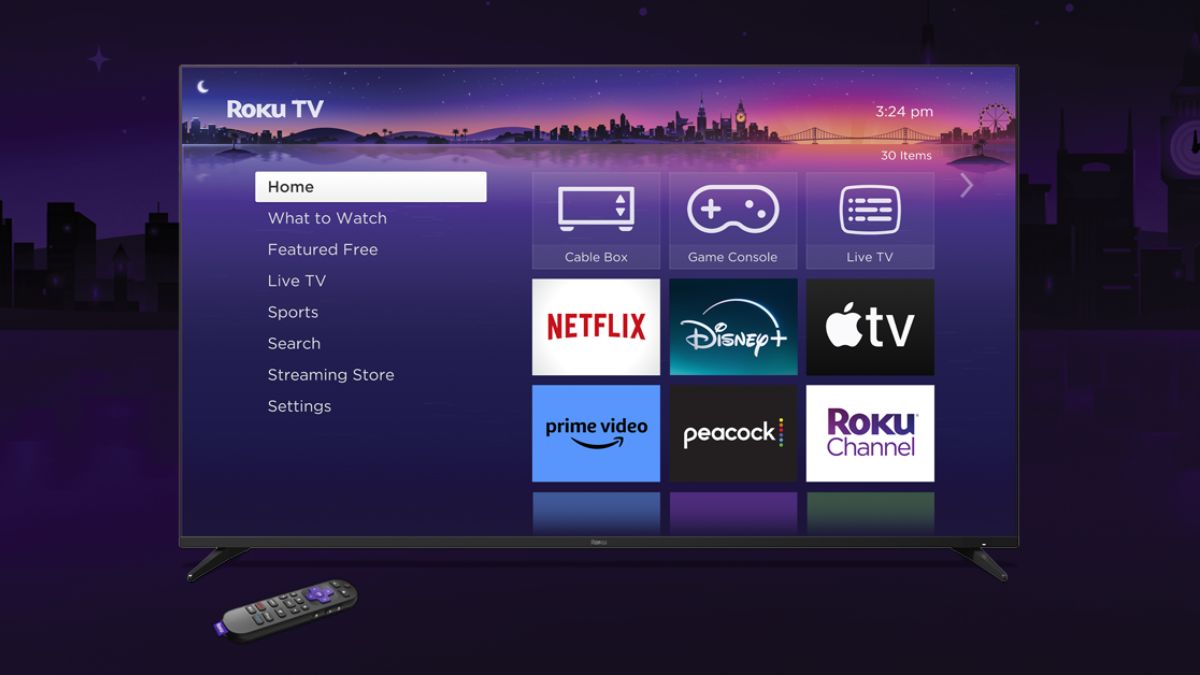
Roku is the number one streaming media player in the United States and is owned by about 70% of our readers according to a recent survey. However, many are likely not taking full advantage of everything Roku has to offer.
So, here are my top 5 Roku tips to help you get the most from your Roku player.
#1 Rename Your Roku Players
The ability to cast video and photos from your phone is great. The ability to send YouTube videos from your computer or phone to your TV is even better. But if you are like me and own multiple Rokus sometimes it can be confusing to remember which serial number is in the living room and which is in the bedroom.
There is good news. If you head over to My Account page on Roku’s website, you can rename your Roku boxes. That way you can easily figure out which Roku is in your living room and which one is in your bedroom without having to find a serial number.
#2 Roku Apps
Roku has a powerful and helpful app for Android, iOS, and Fire OS devices. This app will let you cast photos and videos from your phone or tablet to your TV. And you can use your mobile device as a remote for your Roku if you ever lose your remote.
The Roku app also solves one of the most common complaints about all streaming players: The onscreen keyboards are slow and painful to use.
#2 Use Your Phone to Enter Usernames & Passwords
Roku offers an onscreen keyboard, but entering passwords and usernames with your Roku remote can be rather cumbersome. The good news is you can use your phone or tablet’s keyboard to enter passwords and usernames with the Roku app. Just click on the keyboard icon on your Roku app to type on your Roku.
#4 Use Your Roku with Public Wi-Fi in a Hotel or Dorm
Ever wish you could take your Roku with you when you travel or use it with public Wi-Fi? The good news is Roku added the ability to use your Roku with public Wi-Fi like you find in a hotel.
How to allow your Roku on public Wi-Fi:
- Plug your Roku player into any TV with an HMDI port.
- Press the Home button on your Roku remote.
- Scroll up or down and select Settings.
- Select Network.
- Select Set up connection.
- Select Wireless.
- From the list of available networks, choose the wireless network for the hotel or dorm. If you do not see the network, select Scan again to see all networks.
- After your Roku player connects to the network, select I am at a hotel or college dorm.
#5 Add New Roku Apps from Your Computer
When you are looking for a particular Roku app sometimes finding it on your computer is a lot easier. The good news is you can use your computer to add a Roku app to all your Rokus. All you need to do is go to Roku’s online apps Store and log into your Roku account. That will let you add Roku apps to your Roku from your computer.